Why Fire TV Stick is the best choice for digital signage
With a Fire TV Stick (approx. $30–45, depending on model), you can turn virtually any TV with an HDMI port into a full-featured digital signage display. You don't need an expensive smart TV or specialized hardware – the stick makes any older TV internet-capable.
Our recommendation: The Fire TV Stick 4K (2nd Gen) or Fire TV Stick HD (3rd Gen) are perfectly sufficient. The more expensive models with extra storage are only worth it if you want to use many apps – for digital signage, the basic model is enough.
What you need
- Fire TV Stick (any model, approx. $30–45)
- TV or monitor with HDMI port
- Stable Wi-Fi connection at your location
- Amazon account (free, if you don't have one yet)
- Bildschirmzentrale account (sign up free)
Step-by-step guide
1. Connect and set up Fire TV Stick
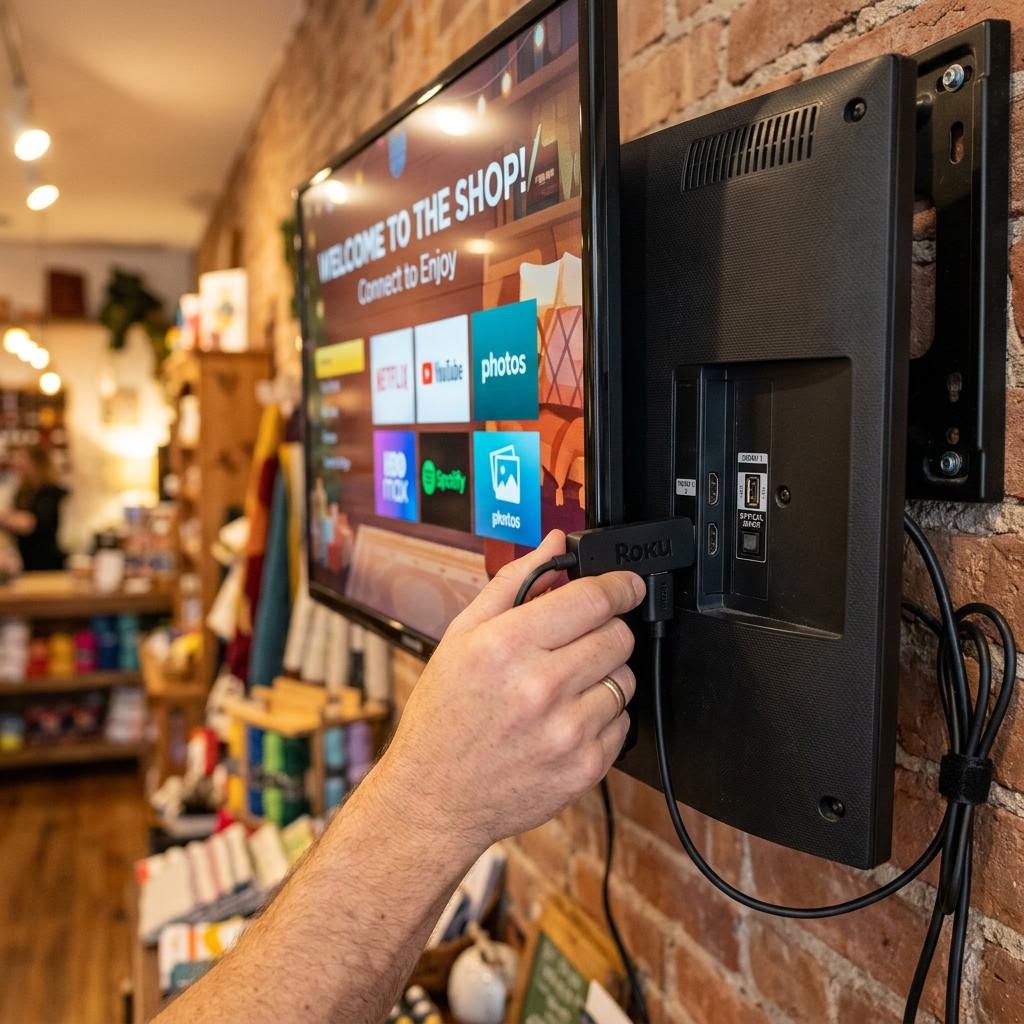
- Plug the Fire TV Stick into a free HDMI port on your TV.
- Connect the included USB power supply to a wall outlet (not to the TV's USB port – it often doesn't provide enough power).
- Turn on the TV and select the correct HDMI input (usually via "Source" or "Input" button on the TV remote).
- Follow the on-screen initial setup: choose language, connect to Wi-Fi, sign in with your Amazon account.
Important: Always use the included power supply, not the USB port on your TV. Insufficient power leads to crashes and reboots during continuous operation.
2. Install kiosk browser app
The Fire TV Stick needs a browser app that displays your Bildschirmzentrale slideshow in continuous operation. You have two options:
Option A: Pre-installed Silk Browser (easiest solution)
- On the Fire TV Stick, open the pre-installed "Silk Browser" (Amazon Internet) app.
- The Silk Browser is already installed – you don't need to do anything.
Option B: Kiosk Browser from Amazon Appstore (more features)
- On the Fire TV Stick, open the Amazon Appstore (Home menu > "Apps").
- Search for "Kiosk Browser" or "Fully Kiosk" (various apps available, often paid approx. $5–15).
- Install the app of your choice. Fully Kiosk Browser offers advanced settings for autostart and motion sensors, but is not essential for basic functionality.
Our recommendation: For most use cases, the free Silk Browser is perfectly adequate. Try it first – you can always upgrade later.
3. Enter Bildschirmzentrale player URL
- Sign in to your Bildschirmzentrale account (on computer or phone) and open your screen settings.
- Copy the player URL (looks like:
https://bildschirmzentrale.de/player/ABC123). - On the Fire TV Stick, open the browser app (Silk or your installed kiosk app).
- Enter the player URL in the address bar and press Enter.
- Your slideshow should now appear in fullscreen.
4. Configure autostart and homepage
In Silk Browser:
- Press the Menu button (three horizontal lines) on the Fire TV remote.
- Select "Settings" (gear icon).
- Select "Set Homepage" and confirm the current URL as homepage.
- Set the browser to fullscreen mode (usually via Menu > Fullscreen or automatically).
In Kiosk Browser apps:
- Open the app settings (usually via menu or long-press the back button).
- Enter the player URL as "Start URL" or "Kiosk URL".
- Enable "Fullscreen Mode" and "Autostart".
5. Disable screensaver and power saving mode
So your digital signage display runs continuously and doesn't go into standby after a few minutes:
- Press the Home button on the Fire TV remote.
- Go to Settings (gear icon in the top right).
- Select Display & Sounds.
- Select Screen Saver and set "Start after" to Never.
- Go back to Settings > Power Saving (or "Screen Off") and set this to Never as well.
Important: This setting ensures the screen runs continuously. Also check your TV's power saving settings – many TVs have their own "Auto Standby" after 4 hours that kicks in independently of the Fire TV Stick.
6. Configure TV power-on behavior
So your digital signage display automatically restarts after a power outage or daily power cycling:
- Open your TV's menu (not the Fire TV Stick's).
- Look for settings like "Power On Behavior", "Last Source", or "Auto Power On".
- Set the TV to automatically activate the last HDMI source when turning on (i.e., the Fire TV Stick).
- The Fire TV Stick starts automatically when powered and – if configured correctly – opens the browser with your slideshow.
| Criteria | Details |
|---|---|
| Cost | approx. $30–45 (Fire TV Stick), optional kiosk app $5–15 |
| Time required | 15–25 minutes initial setup |
| Difficulty | Easy – no technical knowledge required |
| 24/7 operation | Yes, reliable for continuous operation |
| Requirements | Wi-Fi, HDMI TV, Amazon account |
Tips for stable continuous operation
- Store remote safely: Keep the Fire TV remote out of reach of customers so no one accidentally exits the slideshow or opens apps.
- Check Wi-Fi stability: The Fire TV Stick requires a continuous internet connection. Position your Wi-Fi router nearby or use a Wi-Fi repeater if the signal is weak.
- Automatic restart after power outage: The Fire TV Stick boots automatically when powered. Make sure your TV also turns on automatically (see step 6) – then everything restarts by itself after a power outage.
- Regular updates: The Fire TV Stick usually installs software updates automatically at night. If your screen only runs during the day, turn it on occasionally at night so updates can complete.
- Avoid overheating: The Fire TV Stick can get warm during continuous operation. Ensure adequate ventilation – don't plug it into tight spaces behind the TV.
Common problems and solutions
Fire TV Stick doesn't start automatically after power outage:
Check the power supply – use the original power adapter, not the TV's USB port. Also check if your TV automatically selects the HDMI input (see step 6).
Slideshow stops after some time:
Disable screensaver and power saving mode both in Fire TV (step 5) and in your TV's settings.
Browser doesn't open automatically on startup:
Set the player URL as homepage in your browser app (step 4). Some apps require you to additionally enable "Autostart".